You are using an outdated browser. For a faster, safer browsing experience, upgrade for free today.

Loading...

FAQ

Click or tap each question to reveal the answer:

Android

The best way is to use automatic updates:

  1. Open the Google Play Store on your Android device.
  2. Tap the three horizontal lines in the upper-left corner of your screen.
  3. Tap "Settings."
  4. Tap "Auto-update apps."
  5. A pop-up window will appear, asking what your preference is for the updates. Select your preference by tapping on it. When you are done, tap "Done."

If you don't want automatic, manual instructions:

  1. Open the Google Play Store on your Android device.
  2. Tap the three horizontal lines in the upper-left corner of your screen.
  3. Tap "My apps & games."
  4. To proceed with all pending updates, tap "Update all" under the "Updates" tab. To manually update each app individually, tap on the app you want to update.

iPhone / iPad

The best way is to use automatic updates

  1. Open the Settings app on your iPhone.
  2. Scroll down and tap App Store.
  3. Turn on the switch next to Automatic Updates.

To to it manually:

  1. Open the App Store.
  2. Tap your profile icon at the top of the screen.
  3. Scroll to see pending updates and release notes. Tap Update next to an app to update only that app, or tap Update All.

This means you may have clicked "Block" when your browser asked for your location, and it will likely not ask again. Here's how to undo that:

Choose your browser / device:

iPhone / iPad (Safari)

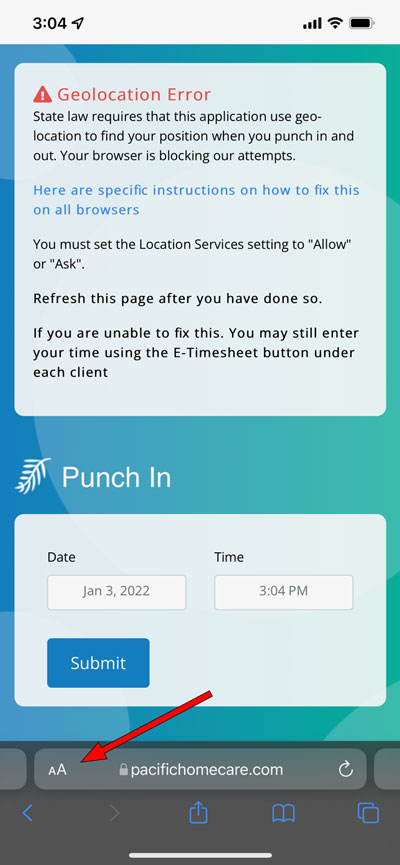
You should see this message, indicating that the location services are blocked:

FAQ

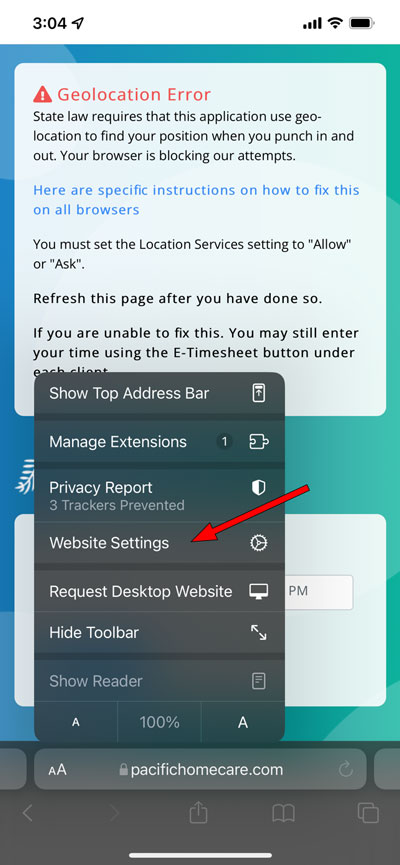
Tap the "AA" icon next to the website's address.

FAQ

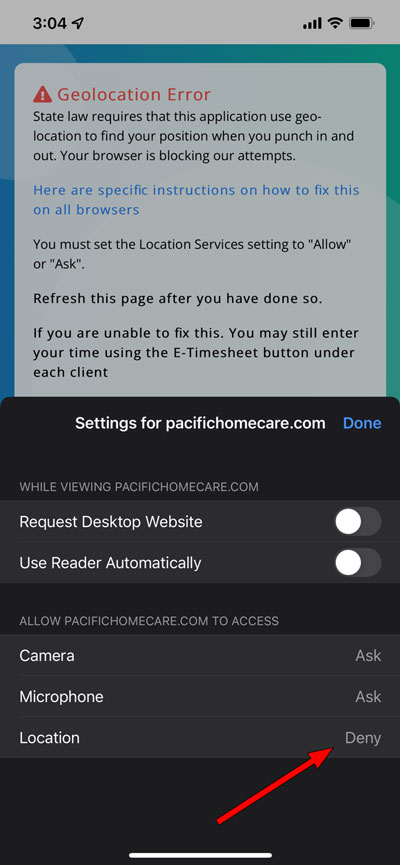
Tap location at the bottom, and change the value to "Allow".

FAQ

Refresh the page.

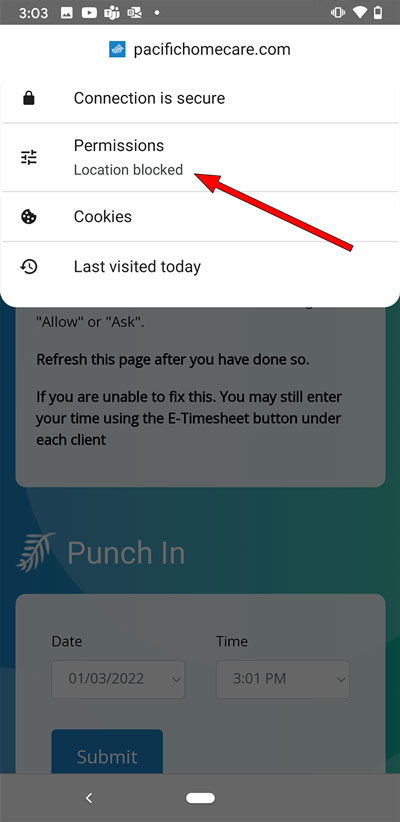
Android (Chrome)

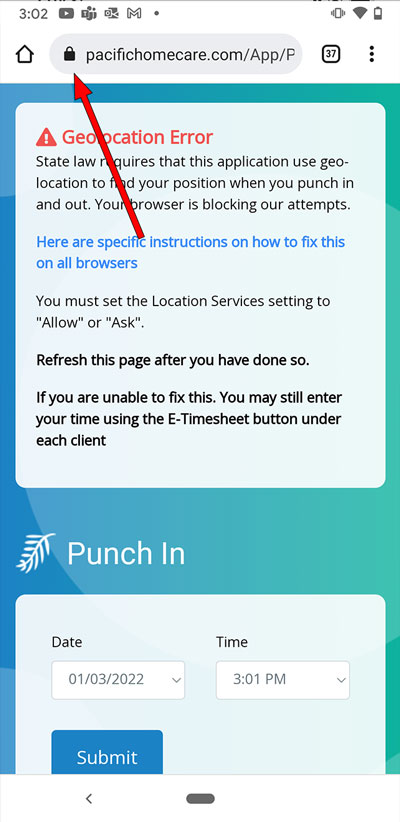
You should see this message, indicating that the location services are blocked:

FAQ

Tap the padlock icon next to the website's address.

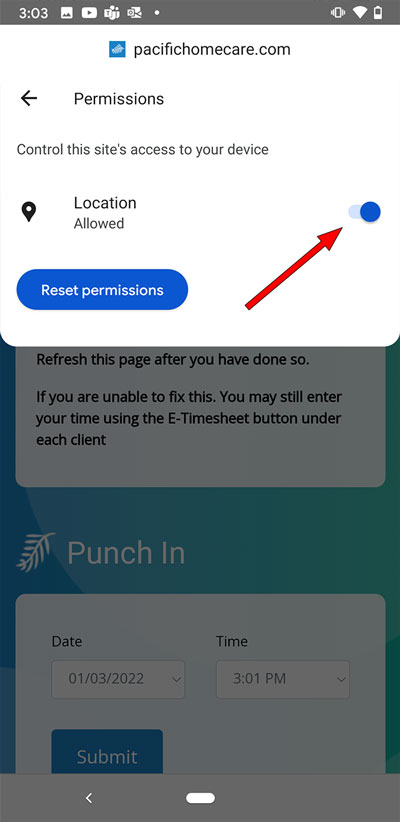
FAQ

Tap location at the bottom, and change the value to "Allow".

FAQ

Refresh the page.

You can still enter your time! Just change the date and time boxes to match what you missed. The system will ask you for a reason it was changed, but we'll still accept and pay your hours for 48 hours.

If you are still stuck, please include you name and your Provider ID so we can identify you and email us at: accounting@pacifichomecare.com.